PicPick: The Design-Focused Snipping Tool Alternative With Scrolling Capture
If you have ever hit the limits of the built-in Windows Snipping Tool, PicPick is one of the first names worth knowing. It is a Windows-exclusive screenshot utility built for people who need more than a quick crop, combining flexible capture modes with a capable image editor. That makes PicPick a natural snipping tool alternative for anyone who edits screenshots as often as they take them. What sets it apart is a rare pairing: strong graphic design features on one side and scrolling window capture on the other. If you regularly grab long web pages, chat threads, or documents that stretch beyond a single screen, PicPick handles the whole thing in one shot instead of forcing you to stitch images together by hand.
What Is PicPick?
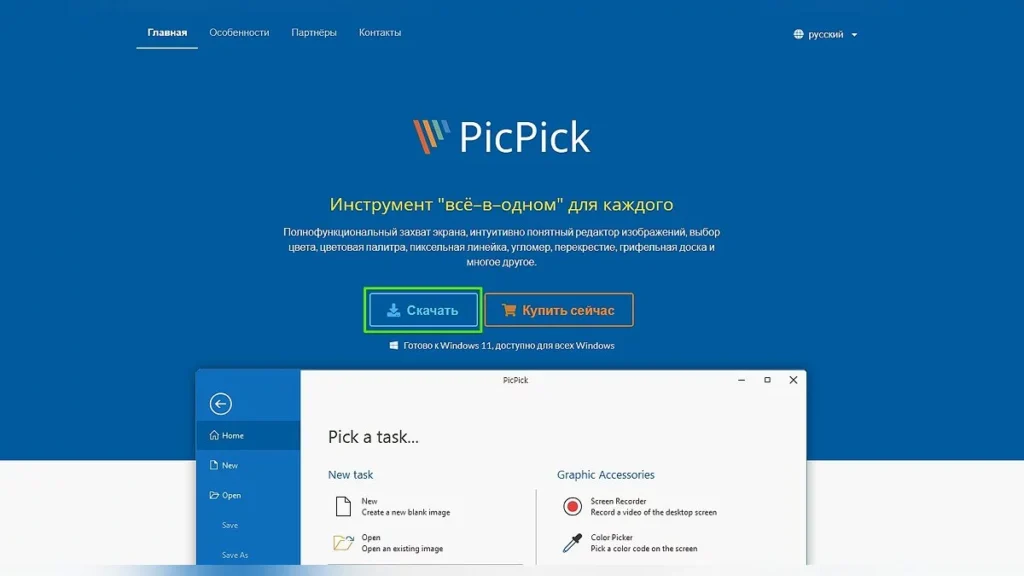
PicPick is an all-in-one screen capture and image editing tool for Windows. Rather than acting as a bare screenshot grabber, it bundles capture, annotation, and design tools into one interface. You can snap the area you want, then mark it up, apply effects, and export it without opening a separate photo editor. That makes it especially useful for tutorials, documentation, bug reports, and marketing visuals where the raw screenshot is only the starting point. PicPick does not force you to choose between speed and depth. Simple captures are a hotkey away, yet the moment you need to blur a password or brand an image, the right tools are already in the same window.
Key Features of PicPick
Here are the highlights, with a look at what each one does in practice:
PicPick vs. the Windows Snipping Tool
The default Windows Snipping Tool is fine for grabbing a quick rectangle. Where it falls short is everything after the capture: its editing is limited to a pen, a highlighter, and basic cropping, and it cannot capture content that runs off the bottom of the screen. PicPick closes both gaps. It matches the Snipping Tool on the basics, then adds scrolling capture, saturation and color adjustments, motion blur, drop shadows, frames, and watermarks. In short, the Snipping Tool captures, while PicPick captures and finishes the image. For anyone who does more than paste a screenshot into a chat window, that is the practical reason to go looking for a snipping tool alternative in the first place.
Design and Scrolling-Capture Use Cases
Picture the jobs PicPick makes easy. A support agent can capture a full scrolling error log and highlight the line that broke. A course creator can frame each screenshot and add a watermark for a consistent look across a lesson. A marketer can grab a long landing page in one image for a competitor teardown. Scrolling capture also helps with archiving a full article, receipt, or conversation as proof, and because the editing tools sit beside the capture tools, these workflows stay in one place.
Pricing and Platforms
PicPick keeps its pricing simple, with a free tier for individuals and a paid tier for business use.
|
Detail |
Information |
|
Price (personal) |
Free |
|
Price (commercial) |
Paid license |
|
Platforms |
Windows 7, Windows 10 |
|
Rating |
4.8/5 (Windows Report) |
The free version covers everything a personal user typically needs. If you plan to use PicPick inside a company or for client work, a paid commercial license is required. Its 4.8/5 rating from Windows Report reflects how well it balances power and usability.
Pros and Cons
Pros
Cons
Tips for Getting Started With PicPick
A few habits help you get value from PicPick quickly. Set up your hotkeys early so full screen, region, and scrolling capture each have a key you remember. Save a reusable watermark or frame if you brand images often, so you are not rebuilding the same effect every time. And when you use scrolling capture, make sure the target window can actually scroll, since the feature works by moving through content automatically.
Who Should Use PicPick?
PicPick is a strong fit for anyone whose screenshots need to look good, not just exist. Technical writers, support teams, and course creators benefit from the built-in editor and effects, since they can annotate, brand, and export without switching apps. Web professionals and QA testers will appreciate scrolling capture for documenting full pages in one image. It is also a smart pick for people who want a capable free tool for personal projects and do not mind that it lives only on Windows. If you mostly take plain screenshots and rarely edit them, the depth of features may be more than you need, and a lighter snipping tool alternative might suit you better.
Final Verdict
PicPick earns its reputation as a feature-rich upgrade over the default Windows Snipping Tool. The pairing of scrolling capture and a full editing suite is hard to find elsewhere, and the free personal tier makes it easy to try. If you are on Windows and accept the commercial licensing rule, it is one of the most complete screenshot tools you can add to your workflow.