Apowersoft Free Screen Capture: A Browser-Based Snipping Tool Alternative
If at some point in time you found yourself in need of a fast screenshot but were afraid to download one more desktop software, Apowersoft Free Screen Capture might be the solution. As you can tell from the name, this app operates directly in your browser, enabling you to make captures and recordings without installing an additional software product. If you are tired of the limitations of the native Windows Snipping Tool, it is time for you to explore this lightweight tool for taking and sharing screenshots. The Windows Snipping Tool performs well enough when it comes to creating snapshots; however, it does not offer any screen recording feature, cloud storage, or advanced sharing capabilities. These missing features are exactly what make the snipping tool alternative necessary, and this article will explain how it works and why people should use it.
What Is Apowersoft Free Screen Capture?
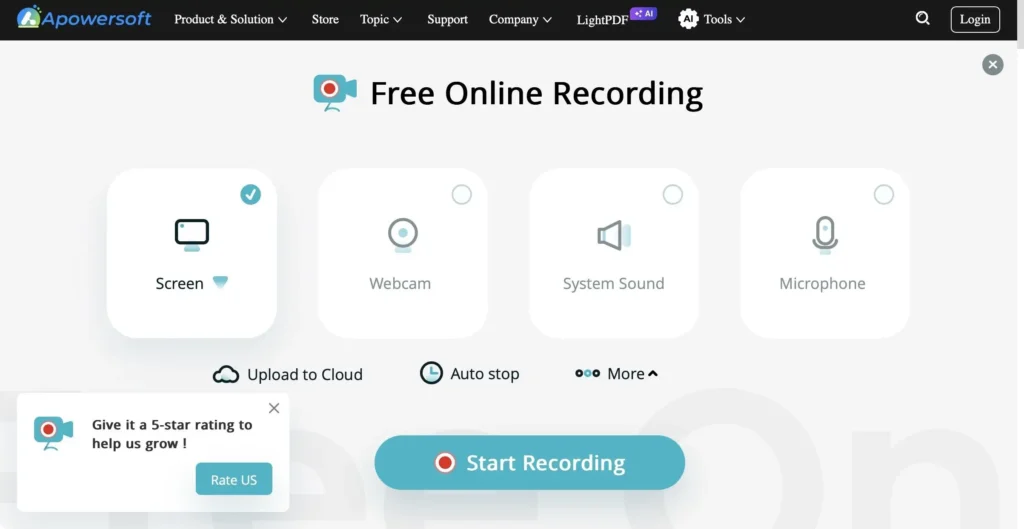
Apowersoft Free Screen Capture is a web-based tool designed for capturing images or videos without requiring additional software installations on the computer system. This software is accessed via a web page, and a tiny plug-in in the web browser performs the function of capturing the desired images or videos. Once captured, the images or videos can be annotated and uploaded to the cloud-based free storage or social networks. Since it is web-based software, it caters to those who use multiple computers or do not want to install programs on their computer systems. The software is compatible with Windows and web browsers, and the same engine captures full-screen, region, or video capture.
Key Features of Apowersoft Free Screen Capture
Apowersoft Free Screen Capture vs. the Windows Snipping Tool
The default Windows Snipping Tool is dependable for grabbing a quick image, but it was built around that one job: rectangular, freeform, window, and full-screen snips plus light markup, with no cloud storage and no direct sharing. Apowersoft closes those gaps: it pushes a capture to cloud storage and generates a shareable link, adds a fuller set of annotation options, and records continuously with adjustable frame rates and selectable audio inputs. The trade-off is straightforward. The Windows tool works entirely offline and needs nothing extra, while Apowersoft depends on a browser plugin and web access. If your work is purely local screenshots, the native tool is fine; if you record tutorials, annotate heavily, and share often, the browser-based option pulls ahead as a more complete snipping tool alternative.
Real-World Use Cases
A support agent can record a short walkthrough showing a customer which button to click, then drop a cloud link into the chat. A teacher can capture a live online lesson for absent students in one file, and a content creator can screenshot, add callouts, and post to social media without ever leaving the browser.
Pricing and Platforms
Apowersoft keeps its entry point simple: free to use, with a Pro version for those who want more.
|
Detail |
Information |
|
Pricing |
Free; Pro version available |
|
Platforms |
Windows, Browser |
|
User Rating |
4.4 / 5 |
- The rating of 4.4/5 shows that there is satisfaction with this product by the users who prefer taking captures without installing any software. The free version provides all basic tools for screenshots, recordings, and uploading them to the cloud storage; therefore, the majority of users do not need to upgrade to the Pro version.
Several tips will help you work effectively with this tool:
- Remember to check the audio source before starting a long recording in order not to spend time creating tutorials without sound.
- Set the appropriate frame rate depending on what content you are going to create — high for motion and low for static content.
- Make annotations while still in context and set clear names for your cloud saves to easily find the uploaded links.
Pros and Cons
Pros
Cons
Who Should Use Apowersoft Free Screen Capture?
The software is a perfect fit for those who want to make recordings of their online tutorials and stream videos without having to pay for software solutions. The software is ideal for remote workers and content creators who seek fast annotation and easy cloud sharing features. In case capturing screen content that is ready to store right away is your priority, then Apowersoft Free Screen Capture will suit your browser-based routine perfectly. Those who depend highly on offline editing and professional video may consider using the software along with an editor. However, for other purposes, the software works perfectly.
Final Verdict
In comparison with the standard tool of capturing the screen, Apowersoft Free Screen Capture becomes very useful, offering such features as screenshots, screen recorder, annotator, and even cloud storage at no charge, all integrated in one browser application. Usage of the browser extension and lack of fully offline version become small disadvantages compared to the comfort the tool provides, and it becomes highly recommended when one gets bored with using the standard Snipping Tool.