LightShot Review: The Fast, Free Snipping Tool Alternative for Instant Sharing
If the built-in Windows Snipping Tool feels slow when you just want to grab a screen and send it, LightShot is worth a serious look. It is a lightweight, free screenshot application built around one goal: capture what is on your screen, mark it up in seconds, and share it instantly. For anyone who takes screenshots dozens of times a day, that speed adds up fast. In this review, we look at LightShot as a snipping tool alternative for Windows and Mac users, covering its features, pricing, platforms, how it compares to the native Windows tool, and the honest pros and cons so you can decide whether it fits your workflow.
What Is LightShot?
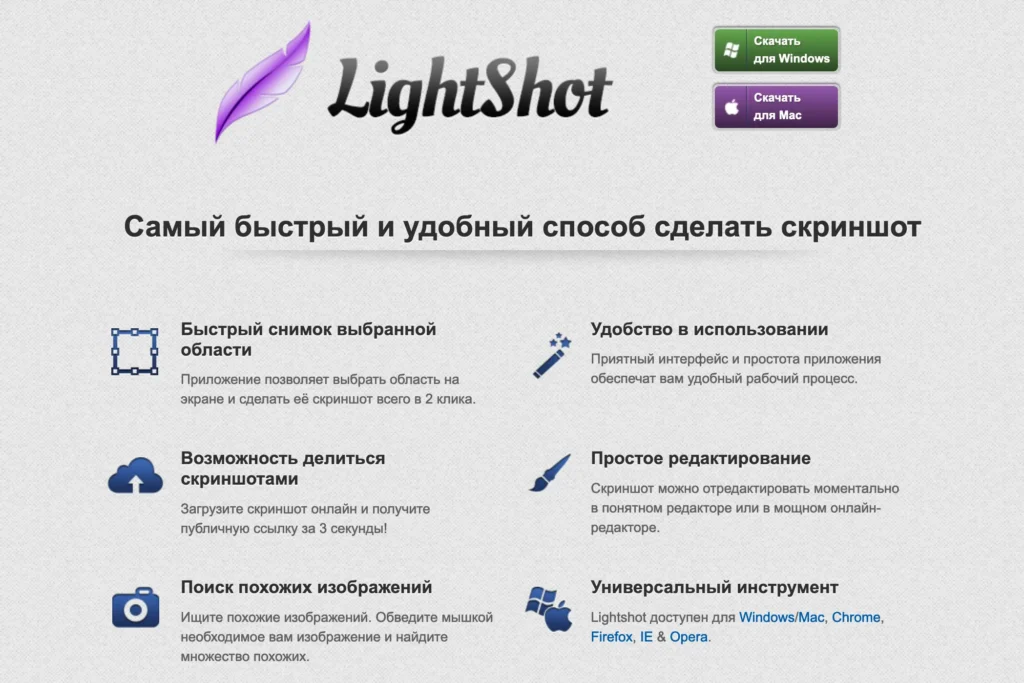
LightShot is a fast, simple screenshot tool that emphasizes intuitive editing and quick online sharing. Instead of loading a full app window, you press a hotkey, drag to select any region, and a compact toolbar appears right beside your selection. From there, you can annotate and upload without ever leaving the capture. That focus on friction-free capture is exactly what makes it a compelling alternative to the default Windows Snipping Tool. It stays out of your way, launches instantly, and gives you sharing options the native tool simply does not offer. The app sits quietly in your system tray until you need it, so there is no window to keep open.
Key Features of LightShot
LightShot vs. the Windows Snipping Tool
The native Snipping Tool is perfectly capable of occasional, save-to-disk screenshots. Where LightShot pulls ahead is in speed and sharing. With the Windows tool, the typical path is to capture, edit in a separate window, save the file, then upload or attach it. LightShot compresses that into a single hover-and-click flow, and instant link sharing means you often skip saving a file altogether. The annotation experience also differs. LightShot’s markup tools sit right on the capture, so you circle, label, and highlight in place instead of switching to another editor. The trade-off is that the Windows Snipping Tool now includes screen recording, which LightShot does not. If your work is entirely still images and you value speed, LightShot wins comfortably; if you regularly need video, keep the native tool close at hand.
Pricing and Platforms
LightShot is completely free, which is a big part of its appeal. There is no premium tier gate on the core capture and sharing features, and no watermark is stamped on your images.
|
Detail |
Information |
|
Price |
Free |
|
Platforms |
Windows, Mac |
|
Rating |
4.7 / 5 on G2 |
A rating of 4.7/5 on G2 means the users genuinely value the combination of speed and simplicity, something unusual for free software.
Pros and Cons
Pros
Cons
Who Should Use LightShot?
LightShot is a great match for people who value speed over depth. If you are a student capturing lecture slides, a support agent sharing quick visuals with customers, a developer flagging a UI bug, or anyone who fires off screenshots throughout the day, this tool removes almost all the steps between seeing something and sharing it. It is also an excellent pick for beginners. Because the interface is so minimal, there is little to figure out beyond the first hotkey setup. If your needs are simple and you mostly want to grab, mark, and send, LightShot handles that beautifully. On the other hand, if you regularly record video walkthroughs or need layered, professional-grade editing, you will outgrow it quickly and should pair it with a heavier tool.
Tips for Getting Started with LightShot
The one moment that trips up new users is the initial shortcut. After installing, open the settings from the tray icon and confirm which key triggers a capture, then reassign it to something you will remember. A quick practice run will lock the flow into muscle memory within minutes. A few habits make it even smoother. Use the copy-to-clipboard option to paste an image straight into a chat, and the upload option when you need a link. And save any sensitive captures locally rather than uploading them, since uploaded images live behind a public link.
Final Verdict
As a snipping tool alternative, LightShot nails the fundamentals. It is fast, free, cross-platform, and refreshingly simple, and its instant link-sharing genuinely speeds up communication. The trade-off is depth: no recording and only basic editing. For everyday screenshot tasks, that is a trade worth making, and if quick capture and effortless sharing are your priorities, LightShot is an easy recommendation.